
SuperMike-II
h3
h4
▶ Table of Contents
System Overview
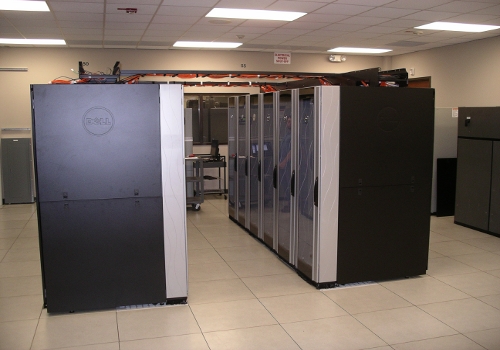
SuperMike-II, named after LSU's original large Linux cluster named SuperMike that was launched in 2002, is 10 times faster than its immediate predecessor, Tezpur.
SuperMike-II is a 146 TFlops Peak Performance 440 compute node cluster running the Red Hat Enterprise Linux 6 operating system. Each node contains two 8-Core Sandy Bridge Xeon 64-bit processors operating at a core frequency of 2.6 GHz. Fifty of the compute nodes also have two NVIDIA M2090 GPUs that provide an additional 66 Tflops total Peak performance.
SuperMike-II is open for general use to LSU users.
Configuration
- 2 Interactive Nodes
- Two 2.6 GHz 8-Core Sandy Bridge Xeon 64-bit Processors
- 64GB 1666MHz Ram
- 500GB HD
- 40 Gigabit/sec Infiniband network interface
- 1 Gigabit Ethernet network interface
- Red Hat Enterprise Linux 6
- 404 Compute Nodes
- Two 2.6 GHz 8-Core Sandy Bridge Xeon 64-bit Processors
- 32GB 1666MHz Ram
- 500GB HD
- 40 Gigabit/sec Infiniband network interface
- 1 Gigabit Ethernet network interface
- Red Hat Enterprise Linux 6
- 50 Compute Nodes
- Two 2.6 GHz 8-Core Sandy Bridge Xeon 64-bit Processors
- Two NVIDIA M2090 GPUs
- 64GB 1666MHz Ram
- 500GB HD
- 40 Gigabit/sec Infiniband network interface
- 1 Gigabit Ethernet network interface
- Red Hat Enterprise Linux 6
- 32 Compute Nodes
- Two 2.6 GHz 8-Core Sandy Bridge Xeon 64-bit Processors
- Two NVIDIA K20X GPUs
- 64GB 1666MHz Ram
- 200GB HD
- 56 Gigabit/sec Infiniband network interface
- Red Hat Enterprise Linux 6
- 8 Compute Nodes
- Two 2.6 GHz 8-Core Sandy Bridge Xeon 64-bit Processors
- 256GB 1666MHz Ram
- 500GB HD
- 40 Gigabit/sec Infiniband network interface
- 1 Gigabit Ethernet network interface
- Red Hat Enterprise Linux 6
- Cluster Storage
- 1 PB DDN Lustre High-Performance disk
- 3 TB NFS-mounted /home disk storage
1. System Access to SuperMike-II
1.1. SSH
To access SuperMike-II, users must connect using an Secure Shell (SSH) client.
Linux and Mac Users - SSH client is already installed and can be accessed from the command prompt using the ssh command. One would issue a command similar to the following:
$ ssh -X username@mike.hpc.lsu.edu
The user would then be prompted for his password. The -X flags allow for X11 Forwarding to be set up automatically.
Windows Users - You will need to download and install a SSH client such as the PuTTY utility. If users need access to login with X11 Forwarding, a X-Server needs to be installed and running on your local Windows machine. Xming X Server is recommended, advanced users may also install Cygwin which also provides a command line ssh client similar to that available for Linux and Mac Users.
If you have forgotten your password, or you wish to reset it, see here(click "Forgot your password?").
1.2. Help
To report a problem please run the ssh or gsissh command with the "-vvv" option and include the verbose information in the ticket.
2. File Transfer
2.1. SCP
Using scp is the easiest method to use when transferring single files.
Local File to Remote Host
% scp localfile user@remotehost:/destination/dir/or/filename
Remote Host to Local File
% scp user@remotehost:/remote/filename localfile
2.2. SFTP
Interactive Mode
One may find this mode very similar to the interactive interface offered. A login session may look similar to the following:
% sftp user@remotehost
(enter in password)
 ...
sftp>
The commands are similar to those offered by the outmoded ftp client programs: get, put, cd, pwd, lcd, etc. For more information on the available set of commands, one should consult sftp the man page.
% man sftp
Batch Mode
One may use sftp interactively in two cases.
Case 1: Pull a remote file to the local host.
% sftp user@remotehost:/remote/filename localfilename
Case 2: Creating a special sftp batch file containing the set of commands one wishes to execute with out any interaction.
% sftp -b batchfile user@remotehost
Additional information on constructing a batch file is available in the sftp man page.
2.3. rsync Over SSH (preferred)
rsync is an extremely powerful program; it can synchronize entire directory trees, only sending data about files that have changed. That said, it is rather picky about the way it is used. The rsync man page has a great deal of useful information, but the basics are explained below.
Single File Synchronization
To synchronize a single file via rsync, use the following:
To send a file:
% rsync --rsh=ssh --archive --stats --progress localfile \
        username@remotehost:/destination/dir/or/filename
To receive a file:
% rsync --rsh=ssh --archive --stats --progress \
        username@remotehost:/remote/filename localfilename
Note that --rsh=ssh is not necessary with newer versions of rsync, but older installs will default to using rsh (which is not generally enabled on modern OSes).
Directory Synchronization
To synchronize an entire directory, use the following:
To send a directory:
% rsync --rsh=ssh --archive --stats --progress localdir/ \
        username@remotehost:/destination/dir/
or
% rsync --rsh=ssh --archive --stats --progress localdir \
        username@remotehost:/destination
To receive a directory:
% rsync --rsh=ssh --archive --stats --progress \
        username@remotehost:/remote/directory/ /some/localdirectory/
or
% rsync --rsh=ssh --archive --stats --progress \
        username@remotehost:/remote/directory /some/
Note the difference with the slashes. The second command will place the files in the directory /destination/localdir; the fourth will place them in the directory /some/directory. rsync is very particular about the placement of slashes. Before running any significant rsync command, add --dry-run to the parameters. This will let rsync show you what it plans on doing without actually transferring the files.
Synchronization with Deletion
This is very dangerous; a single mistyped character may blow away all of your data. Do not synchronize with deletion if you aren't absolutely certain you know what you're doing.
To have directory synchronization delete files on the destination system that don't exist on the source system:
% rsync --rsh=ssh --archive --stats --dry-run --progress \
        --delete localdir/ username@remotehost:/destination/dir/
Note that the above command will not actually delete (or transfer) anything; the --dry-run must be removed from the list of parameters to actually have it work.
2.4. BBCP
Using BBCP to transfer large data files without encryption.
% bbcp [opt] user@source:/path/to/data user@destination:/path/to/store/data
Possible options include:
- -P 2
- Give a progress report every 2 seconds
- - w 2M
- TCP window size of 2MBytes
- -s 16
- Set the number of streams to 16 (default is 4)
Other options may be necessary if bbcp is not installed in a regular location on either end of the transfer. This can lead to rather complex command lines:
$ bbcp -z -T \
  "ssh -x -a -oFallBackToRsh=no %I -l %U %H /home/user/Custom/bin/bbcp" \
  foobar-5.4.14.tbz "ruser@10.20.30.40:foo.tbz"
2.5 Client Software
scp and sftp
Standard Clients
The command-line scp and sftp tools come with any modern distribution of OpenSSH; this is generally installed by default on modern Linux, UNIX, and Mac OS X installs.
Windows Clients
Windows clients include:
(puTTY-related command line utilities), and
- scp, sftp, & rsync as provided by Cygwin.
*** VERY IMPORTANT ***: if you use Filezilla, please use the Site Manager feature (under "File") to manage the profile of the cluster you use. In the "Transfer Settings" tab, make sure that the "Limit number of simultaneous comments" box is checked and the "Maximum number of connections" is set to 1. Failing to do so may result in Filezilla creating excessive ssh connections, which could lead the suspension of your user account.
3. Computing Environment.
3.1. Shell
SuperMike-II's default shell is bash. Other shells are available: sh, csh, tcsh, and ksh. Users may change their default shell by logging into their HPC Profile page at https://accounts.hpc.lsu.edu.
3.2. Modules
SuperMike-II makes use of modules to allow for adding software to the user's environment.
3.2.0 Replace Softenv with Module
The module environment will be the default environment on SuperMike-II for modifying your user environment. Users who are familiar with the previous softenv environment on SuperMike-II please note that softenv environment will no longer be available soon in Fall 2018. All HPC users should start using Module in place of Softenv to add/remove software packages in their work environment from now on.
The following is a guide to replace Softenv with Module.
Please choose either one of the two methods listed below to ensure a proper Module setup. Note that the two methods are identical.
Method 1 (Using our script to create and change necessary files):
1. Execute the module setup script by using the below command in your terminal.
sh /usr/local/packages/Modules/module_setup.sh
2. Logout followed by login back to SuperMike-II to apply the above changes.
3. To check Module works properly, run the below commands in your terminal:
module available # generate a list of software packages installed
module load keyname # load a desired package to your environment.
Method 2 (Manually create and change necessary files):
1. Create an empty file .nosoft in your home (/home/username)
2. Create another file .modules in your home (/home/username)
3. Add the following lines to .bashrc, which is located in your home (/home/username):
source /usr/local/packages/Modules/3.2.10/init/bash
export MODULEPATH=/usr/local/packages/Modules/3.2.10/modulefiles/admin: \
     /usr/local/packages/Modules/3.2.10/modulefiles/apps
export PATH=/usr/local/packages/Modules/3.2.10/bin:$PATH
source ~/.modules
4. Logout followed by login back to SuperMike-II to apply the above changes.
5. To check Module works properly, run the below commands in your terminal:
module available  # generate a list of software packages installed
module load keyname # load a desired package to your environment.
If you have any questions or concerns regarding the information above, please contact us at sys-help@loni.org or 225-578-9000.
The following is a guide to managing your software environment with modules.
The Environment Modules package provides for dynamic modification of your shell environment. Module commands set, change, or delete environment variables, typically in support of a particular application. They also let the user choose between different versions of the same software or different combinations of related codes. Complete documentation is available in the module(1) and modulefile(4) manpages.
3.2.1. Default Environment
The default environment is defined in the .modules file under each user's home directory. Edit this file if you would like to change the default environment.
3.2.2. Useful Module Commands
| Command | Description |
|---|---|
| module list | List the modules that are currently loaded |
| module avail | List the modules that are available |
| module display <module name> | Show the environment variables used by <module name> and how they are affected |
| module unload <module name> | Remove <module name> from the environment |
| module load <module name> | Load <module name> into the environment |
| module swap <module one> <module two> | Replace <module one> with <module two> in the environment |
3.2.3. Loading and unloading modules
You must remove some modules before loading others. Some modules depend on others, so they may be loaded or unloaded as a consequence of another module command. For example, if intel and mvapich are both loaded, running the command module unload intel will automatically unload mvapich. Subsequently issuing the module load intel command does not automatically reload mvapich.
4. File Systems
| File system name | Access point | Type of file system | Quota | Time until purged | Best for |
|---|---|---|---|---|---|
| Home | /home/<your user name> | NFS | 5 GB | Never | Code in development, compiled executables |
| Work (scratch) | /work/<your user name> | Lustre | Unlimited | 60 days | Job input/output |
| Project | /project/<your user name> | Lustre | Varies | 12 months, can be longer upon renewal | Storage space for a specific project (NOT meant for archival purposes) |
User-owned storage on the SuperMike-II system is available in two directories: home (/home/<your user name>) and work (/work/<your user name>). These directories are on separate file systems, and accessible from any node in the system. The work directory is created automatically within an hour of first login. If your work directory does not exist when you login, please wait at least an hour before contacting the HPC helpdesk.
4.1. Home Directory
The /home file system quota on SuperMike-II is 5 GB. Files can be stored on /home permanently, which makes it an ideal place for your source code and executables. The /home file system is meant for interactive use such as editing and active code development. Do not use /home for batch job I/O.
4.2. Work (Scratch) Directory
The /work (/scratch) directories are created automatically once an hour after first login. The /work volume is meant for the input and output of executing batch jobs and not for long term storage. We expect files to be moved off to other locations or deleted in a timely manner, usually within 30-120 days. For performance reasons, our policy on all volumes is to limit the number of files per directory to around 10,000 and total number files to about 500,000.
The /work file system quota on SuperMike-II is unlimited. If it becomes over utilized we will enforce a purge policy, which means that we will begin deleting files starting with the oldest last accessed date, and largest files, and continue until the volume has been reduced below 80%. An email message will be sent out weekly to users who may have files subject to purge informing them of their /work utilization. If diskspace should become critically low, more drastic measures may be required to keep the system stable.
Please do not attempt to circumvent the removal process by manually changing file dates. The /work volume capacity is not unlimited, and attempts to circumvent the purge process may adversely affect others and lead to access restrictions to the /work volume or even the cluster.
4.3. Project Directory
The /project file system is a quota-controlled space granted via an allocation system that allows large amounts of space to be shared for periods of 12 months or longer. The process is similar to requesting an allocation of system units, but is granted in 100 GB units for 6 months at a time, subject to renewal and demand. Visit the Storage Policy page for more details on who may apply and its intended uses. Qualified individuals may apply for one on the Storage Allocation Request page.
4.4. Local Scratch (/var/scratch) Directory
Local scratch (/var/scratch) space is provided on all compute nodes, and is local to each node (i.e. files stored in /var/scratch cannot be accessed by other nodes). The size of this file system will vary from system to system, and possibly across nodes within a system. This is the preferred place to put any intermediate files required while a job is executing. Once the job ends, the files it stores in /var/scratch are subject to deletion. Users should not have any expectation that files will exist after a job terminates, and are expected to move the data from /var/scratch to their /work or /home directory as part of the clean up process in their job script.
5. Application Development
The Intel, GNU and Portland Group (PGI) C, C++ and Fortran compilers are installed on SuperMike-II and they can be used to create OpenMP, MPI, hybrid and serial programs. The commands you should use to create each of these types of programs are shown in the table below.
Intel compilers are loaded by default, codes can be compiled according to the following chart:
| Serial Codes | MPI Codes | OpenMP Codes | Hybrid Codes | |
|---|---|---|---|---|
| Fortran | ifort | mpiifort | ifort -openmp | mpiifort -openmp |
| C | icc | mpiicc | icc -openmp | mpiicc -openmp |
| C++ | icpc | mpiicpc | icpc -openmp | mpiicpc -openmp |
| Serial Codes | MPI Codes | OpenMP Codes | Hybrid Codes | |
|---|---|---|---|---|
| Fortran | gfortran | mpif90 | gfortran -fopenmp | mpif90 -fopenmp |
| C | gcc | mpicc | gcc -fopenmp | mpicc -fopenmp |
| C++ | g++ | mpiCC | g++ -fopenmp | mpiCC -fopenmp |
| Serial Codes | MPI Codes | OpenMP Codes | Hybrid Codes | |
|---|---|---|---|---|
| Fortran | pgf90 | mpif90 | pgf90 -mp | mpif90 -mp |
| C | pgcc | mpicc | pgcc -mp | mpicc -mp |
| C++ | pgCC | mpiCC | pgCC -mp | mpiCC -omp |
Default MPI: mvapich 1.1 compiled with Intel compiler version 11.1
To compile a serial program, the syntax is: <your choice of compiler> <compiler flags> <source file name> . For example, the command below compiles the source file mysource.f90 and generate the executble myexec.
$ ifort -o myexec mysource.f90
To compile a MPI program, the syntax is the same, except that one needs to replace the serial compiler with an MPI one listed in the table above:
$ mpif90 -o myexec_par my_parallel_source.f90
5.1. GPU Programming
CUDA Programming
NVIDIA's CUDA compiler and libraries are accessed by loading the CUDA module:
module load cuda
Use the nvcc compiler on the head node to compile code, and run executables on nodes with GPUs - there are no GPUs on the head nodes. SuperMike-II K20's GPUs are compute capability 2.0 devices. When compiling your code, make sure to specify this level of capability with:
nvcc -arch=compute_20 -code=sm_20 ...
GPU nodes are accessible through the gpu queue for production work.
OpenACC Programming
OpenACC is the name of an application program interface (API) that uses a collection of compiler directives to accelerate applications that run on multicore and GPU systems. The OpenACC compiler directives specify regions of code that can be offloaded from a CPU to an attached accelerator. A quick reference guide is available here.
Currently, only the Portland Group compilers installed on SuperMike-II can be used to compile C and Fortran code annotated with OpenACC directives.
To load the PGI compilers:
module load pgi
To compile a C code annotated with OpenACC directives:
pgcc -acc -ta=nvidia -Minfo=accel code.c -o code.exe
6. Running Applications
SuperMike-II uses TORQUE, an open source version of the Portable Batch System (PBS) together with the MOAB Scheduler, to manage user jobs. Whether you run in batch mode or interactively, you will access the compute nodes using the qsub command as described below. Remember that computationally intensive jobs should be run only on the compute nodes and not the login nodes. More details on submitting jobs and PBS commands can be found here.
6.1. Available Queues on SuperMike-II
Below are the possible job queues to choose from:
- single - Used for jobs that will only execute on a single node, i.e. nodes=1:ppn=1/2/4/6/8. It has a wallclock limit of 72 hours (3 days). Jobs in the single queue should not use more than 2GB memory per core. If applications require more memory, scale the number of cores (ppn) to the amount of memory required i.e. max memory available for jobs in single queue is 8GB for ppn=4.
- workq - Used for jobs that will use at least one node, i.e. nodes>=1:ppn=16. Currently, this queue has a wallclock limit of 72 hours (3 days). Jobs in workq are not preemptable, which means that running jobs will not be disrupted before completion.
- checkpt - Used for jobs that will use at least one node. Jobs in the checkpt queue can be preempted if needed.
- bigmem - Used for jobs that want to use the 256 GB nodes for jobs requiring between 64 GB and 256 GB memory. This queue has a wallclock limit of 48 hours (2 days).
- bigmemtb - Used for jobs that require large memory upto 1 TB. This queue has a limit of 48 hours (2 days) of wallclock time.
- gpu - Used for jobs that run applications compiled with CUDA compiler or OpenACC directives. Can also be used for jobs that need memory between 32GB and 64 GB RAM.
- lasigma - Used for jobs charged to the hpc_lasigma allocation, i.e. -A hpc_lasigma. The lasigma queue provides access to 28 compute nodes with two NVIDIA 2090 GPUs each and has a limit of 72 hours (3 days) of wallclock time. You cannot charge jobs run on other queues to the hpc_lasigma allocation.
- mwfa - Used for jobs charged to the hpc_mwfa allocation, i.e. -A hpc_mwfa. The mwfa queue provides access to 8 compute nodes and has a limit of 72 hours (3 days) of wallclock time. You cannot charge jobs run on other queues to the hpc_mwfa allocation.
| Queue Name | Max Walltime | Max Nodes (per user) | Allowed Cores per Node |
|---|---|---|---|
| workq | 72 | 128 | 16 |
| checkpt | 72 | 128 | 16 |
| single | 72 | 1 | 1/2/4/6/8 |
| gpu | 72 | 16 | 16 |
| bigmem | 168 | 1 | 16 |
| bigmemtb | 48 | 1 | 20/40 |
| lasigma | 72 | 28 | 16 |
| mwfa | 72 | 8 | 16 |
The available queues and actual limit settings can be verified by running the command:
qstat -q -G
6.2. Job Submission
The command qsub is used to send a batch job to PBS. The basic usage is
qsub pbs.script
where pbs.script is the script users write to specify their needs. qsub also accept command line arguments, which will overwrite those specified in the script, for example, the following command
qsub myscript -A my_LONI_allocation2
will direct the system to charge SUs (service units) to the allocation my_LONI_allocation2 instead of the allocation specified in myscript.
To submit an interactive job, use the -I flag to the
qsub command along with the options for resources required, for
example
qsub -I -l walltime=hh:mm:ss,nodes=n:ppn=16 -A allocation_name
Note that you need to take the whole node when requesting an
interactive job, using anything other than ppn=16 will cause job submission failure. If you
need to enable X-Forwarding, add the -X flag.
Your PBS submission script should be written in one of the Linux
scripting languages such as bash, tcsh, csh
or sh i.e. the first line of your submission script
should be something like #!/bin/bash. The next section
of the submission script should be PBS directives followed by the
actual commands to run your job. Following are a list of useful PBS
directives (can also be used as command line options to qsub) and
environment variables that can be used in the submit script:
- #PBS -q queuename: Submit job to the queuename queue.
- Allowed values for queuename: single, workq, checkpt.
- Depending on cluster, addition values allowed are gpu, lasigma, mwfa, bigmem.
- #PBS -A allocationname: Charge jobs to your allocation named allocationname.
- #PBS -l walltime=hh:mm:ss: Request resources to run job for hh hours, mm minutes and ss seconds.
- #PBS -l nodes=m:ppn=n: Request resources to run job on n processors each on m nodes.
- #PBS -N jobname: Provide a name, jobname to your job to identify it when monitoring job using the qstat command.
- #PBS -o filename.out: Write PBS standard output to file filename.out.
- #PBS -e filename.err: Write PBS standard error to file filename.err.
- #PBS -j oe: Combine PBS standard output and error to the same file. Note you will need either #PBS -o or #PBS -e directive not both.
- #PBS -m status: Send an email after job
status status is reached. Allowed values for status
are
- a: when job aborts
- b: when job begins
- e: when job ends
- The arguments can be combined, for e.g. abe will send email when job begins and either aborts or ends
- #PBS -M your email address: Address to send email to when the status directive above is trigerred.
- PBS_O_WORKDIR: Directory where the qsub command was executed
- PBS_NODEFILE: Name of the file that contains a list of the HOSTS provided for the job
- PBS_JOBID: Job ID number given to this job
- PBS_QUEUE: Queue job is running in
- PBS_WALLTIME: Walltime in secs requested
- PBS_JOBNAME: Name of the job. This can be set using the -N option in the PBS script
- PBS_ENVIRONMENT: Indicates job type, PBS_BATCH or PBS_INTERACTIVE
- PBS_O_SHELL: value of the SHELL variable in the environment in which qsub was executed
- PBS_O_HOME: Home directory of the user running qsub
Following are templates for submitting jobs to the various queues available on SuperMike-II. You may copy and paste into your job script.
Single Queue Job Script Template
#!/bin/bash
#PBS -q single
#PBS -l nodes=1:ppn=1
#PBS -l walltime=HH:MM:SS
#PBS -o desired_output_file_name
#PBS -N NAME_OF_JOB

/path/to/your/executable
Workq Queue Job Script Template
#!/bin/bash
#PBS -q workq
#PBS -l nodes=1:ppn=16
#PBS -l walltime=HH:MM:SS
#PBS -o desired_output_file_name
#PBS -j oe
#PBS -N NAME_OF_JOB

# mpi jobs would execute:
#   mpirun -np 16 -machinefile $PBS_NODEFILE /path/to/your/executable
# OpenMP jobs would execute:
#   export OMP_NUM_THREADS=16; /path/to/your/executable
Checkpt Queue Job Script Template
#!/bin/bash
#PBS -q checkpt
#PBS -l nodes=1:ppn=16
#PBS -l walltime=HH:MM:SS
#PBS -o desired_output_file_name
#PBS -j oe
#PBS -N NAME_OF_JOB

# mpi jobs would execute:
#   mpirun -np 16 -machinefile $PBS_NODEFILE /path/to/your/executable
# OpenMP jobs would execute:
#   export OMP_NUM_THREADS=16; /path/to/your/executable
Bigmem Queue Job Script Template
#!/bin/bash
#PBS -q bigmem
# Request to use a 256 GB node
#PBS -l nodes=1:ppn=16
#PBS -l walltime=HH:MM:SS
#PBS -o desired_output_file_name
#PBS -j oe
#PBS -N NAME_OF_JOB

# mpi jobs would execute:
#    mpirun -np 16 -machinefile $PBS_NODEFILE /path/to/your/executable
# OpenMP jobs would execute:
#    export OMP_NUM_THREADS=16; /path/to/your/executable
Save your job script (For example, script.pbs). Submit the job by executing:
$ qsub script.pbs
6.3. Monitoring Jobs
qstat for checking job status
The command qstat is used to check the status of PBS jobs. The simplest usage is
qstat
which would give informations similar to the following:
[apacheco@qb4 ~]$ qstat
Job id              Name             User            Time Use S Queue
------------------- ---------------- --------------- -------- - -----
729444.qb2          job1.pbs         ebeigi3                0 Q workq
729516.qb2          MAY2009_d        skayres         533:14:2 R workq
729538.qb2          wallret_test222  liyuxiu         67:43:38 R workq
729539.qb2          wallret_test223  liyuxiu         67:43:39 R workq
729540.qb2          wallret_test228  liyuxiu         66:49:50 R workq
729541.qb2          wallret_test231  liyuxiu         64:40:21 R workq
729542.qb2          wallret_test232  liyuxiu         64:40:15 R workq
729543.qb2          wallret_test233  liyuxiu         63:18:24 R workq
729567.qb2          CaPtFeAs         cekuma          00:22:01 R workq
The first column to the six column show the id of each job, the name of each job, the owner of each job, the time consummed by each job, the status of each job (R corresponds to running, Q correcponds to in queue ), and which queue each job is in. qstat also accepts command line arguments, for instance, the following usage gives more detailed information regarding jobs.
[apacheco@qb4 ~]$ qstat -a

qb2:
                                                                   Req'd  Req'd   Elap
Job ID               Username Queue    Jobname    SessID NDS   TSK Memory Time  S Time
-------------------- -------- -------- ---------- ------ ----- --- ------ ----- - -----
729444.qb2           ebeigi3  workq    job1.pbs      --      2   1    --  06:30 Q   --
729516.qb2           skayres  workq    MAY2009_d    2969     8   1    --  72:00 R 66:45
729538.qb2           liyuxiu  workq    wallret_te  26259     1   1    --  70:00 R 67:44
729539.qb2           liyuxiu  workq    wallret_te   5144     1   1    --  70:00 R 67:44
729540.qb2           liyuxiu  workq    wallret_te  12445     1   1    --  70:00 R 66:50
729541.qb2           liyuxiu  workq    wallret_te   2300     1   1    --  70:00 R 64:41
729542.qb2           liyuxiu  workq    wallret_te   1809     1   1    --  70:00 R 64:41
729543.qb2           liyuxiu  workq    wallret_te   9377     1   1    --  70:00 R 63:19
729567.qb2           cekuma   workq    CaPtFeAs    10562     7   1    --  69:50 R 48:18
Other useful options to qstat:
-u username: To display only jobs owned by userusername.-n: To display list of nodes that jobs are running on.-q: To summarize resources available to all queues.
qdel for cancelling a job
To cancel a PBS job, enter the following command.
qdel job_id [job_id] ...
qfree to query free nodes in PBS
One useful command for users to schedule their jobs in an optimal way is "qfree", which shows free nodes in each queue. For example,
[apacheco@qb4 ~]$ qfree
PBS total nodes: 668,  free: 6,  busy: 629,  down: 33,  use: 94%
PBS workq nodes: 529,  free: 3,  busy: 317,  queued: 2
PBS checkpt nodes: 656,  free: 1,  busy: 312,  queued: 64
(Highest priority job 729767 on queue checkpt will start in 2:34:14)
shows that there total 6 free nodes in PBS, they are available in all the two queues: checkpt and workq.
showstart for estimating the starting time for a job
The command showstart can be used to get an approximate estimation of the starting time of your job, the basic usage is
showstart job_id
The following shows an simple example:
[apacheco@qb4 ~]$ showstart 729767
job 729767 requires 32 procs for 2:00:00:00

Estimated Rsv based start in                 2:33:25 on Tue Dec 17 11:52:32
Estimated Rsv based completion in         2:02:33:25 on Thu Dec 19 11:52:32

Best Partition: base
Please note that the start time listed above is only an estimate. There is no gaurantee that the job will start at the above mentioned time.
showq to display jobs info within the batch system
The command showq can be used to display job information within the batch system.
[apacheco@qb4 ~]$ showq

active jobs------------------------
JOBID              USERNAME      STATE PROCS   REMAINING            STARTTIME

729538              liyuxiu    Running     8     2:11:44  Sat Dec 14 13:31:32
729539              liyuxiu    Running     8     2:11:44  Sat Dec 14 13:31:32
729607               amani1    Running   256     2:32:44  Mon Dec 16 15:52:32
729609               amani1    Running   256     2:51:13  Mon Dec 16 16:11:01
729610               amani1    Running   256     2:51:13  Mon Dec 16 16:11:01
729611               amani1    Running   256     2:51:13  Mon Dec 16 16:11:01
729613               amani1    Running   256     3:05:19  Mon Dec 16 16:25:07
... truncated ...
92 active jobs        5032 of 5064 processors in use by local jobs (99.37%)
                        629 of 633 nodes active      (99.37%)

eligible jobs----------------------
JOBID              USERNAME      STATE PROCS     WCLIMIT            QUEUETIME

729767             lsurampu       Idle    32  2:00:00:00  Mon Dec 16 22:54:38
729768             lsurampu       Idle    32  2:00:00:00  Mon Dec 16 22:54:38
729769             lsurampu       Idle    32  2:00:00:00  Mon Dec 16 22:54:38
... truncated ...
16 eligible jobs

blocked jobs-----------------------
JOBID              USERNAME      STATE PROCS     WCLIMIT            QUEUETIME


0 blocked jobs

Total jobs:  108
To display job information for a particular queue, use the command
showq -w class=<queue name>
checkjob to display detailed job state information
The command checkjob is used to display detailed information about the job state. This is very useful if your job is remaining in the queued state, and you'd like to see why PBS hasn't executed it:
[apacheco@qb4 ~]$ checkjob 729787.qb2
job 729787

AName: null
State: Idle
Creds:  user:apacheco  group:loniadmin  account:loni_loniadmin1  class:workq  qos:userres
WallTime:   00:00:00 of 2:00:00
SubmitTime: Tue Dec 17 09:22:14
  (Time Queued  Total: 00:00:14  Eligible: 00:00:06)

NodeMatchPolicy: EXACTNODE
Total Requested Tasks: 32

Req[0]  TaskCount: 32  Partition: ALL


Flags:          INTERACTIVE
Attr:           INTERACTIVE,checkpoint
StartPriority:  141944
available for 8 tasks     - qb[002,007,376]
rejected for Class        - (null)
rejected for State        - (null)
NOTE:  job req cannot run in partition base (available procs do not meet requirements : 24 of 32 procs found)
idle procs:  32  feasible procs:  24

Node Rejection Summary: [Class: 1][State: 667]
This job cannot be started since it requires 4 nodes (32 procs) but only 3 nodes are available.
qshow to display memory and cpu usage on the node that a job is running on
The command qshow is useful to find out how the resources on the node allocated to your job are consumed. For example, if a users job is running slow due to swapping, this command will provide you with information on how much memory (physical and virtual) is used on all processors allocated to your job.
[apacheco@qb4 ~]$ qshow 729731
PBS job: 729731, nodes: 4
Hostname  Days Load CPU U# (User:Process:VirtualMemory:Memory:Hours)
qb373       39 8.93 798 21 lsurampu:mdrun_mpi:88M:31M:10.9 lsurampu:mdrun_mpi:90M:32M:10.9 lsurampu:mdrun_mpi:117M:65M:10.6 lsurampu:mdrun_mpi:89M:31M:10.9 lsurampu:mdrun_mpi:88M:30M:10.9 lsurampu:mdrun_mpi:88M:30M:10.9 lsurampu:mdrun_mpi:89M:31M:10.9 lsurampu:mdrun_mpi:91M:33M:10.9 lsurampu:pbs_demux:3M:0M lsurampu:729731:52M:1M lsurampu:mpirun:52M:1M lsurampu:mpirun_rsh:6M:1M lsurampu:mpispawn:6M:1M
qb368       39 8.99 798 12 lsurampu:mdrun_mpi:89M:40M:10.9 lsurampu:mdrun_mpi:89M:31M:10.9 lsurampu:mdrun_mpi:88M:31M:10.9 lsurampu:mdrun_mpi:89M:32M:10.9 lsurampu:mdrun_mpi:91M:33M:10.9 lsurampu:mdrun_mpi:95M:37M:10.9 lsurampu:mdrun_mpi:91M:33M:10.9 lsurampu:mdrun_mpi:112M:50M:10.9 lsurampu:mpispawn:6M:1M
qb364       39 8.85 800 12 lsurampu:mdrun_mpi:91M:42M:10.9 lsurampu:mdrun_mpi:89M:31M:10.9 lsurampu:mdrun_mpi:93M:35M:10.9 lsurampu:mdrun_mpi:90M:32M:10.9 lsurampu:mdrun_mpi:90M:32M:10.9 lsurampu:mdrun_mpi:89M:31M:10.9 lsurampu:mdrun_mpi:90M:32M:10.9 lsurampu:mdrun_mpi:90M:32M:10.9 lsurampu:mpispawn:6M:1M
qb362       39 8.89 802 12 lsurampu:mdrun_mpi:90M:41M:10.9 lsurampu:mdrun_mpi:89M:31M:10.9 lsurampu:mdrun_mpi:89M:31M:10.9 lsurampu:mdrun_mpi:89M:31M:10.9 lsurampu:mdrun_mpi:112M:51M:10.9 lsurampu:mdrun_mpi:89M:32M:10.9 lsurampu:mdrun_mpi:89M:31M:10.9 lsurampu:mdrun_mpi:89M:31M:10.9 lsurampu:mpispawn:6M:1M
PBS_job=729731 user=lsurampu allocation=loni_poly_mic_1 queue=checkpt total_load=32 cpu_hours=320 wall_hours=10 unused_nodes=0 total_nodes=4 avg_load=8
More detailed information on the Torque PBS commands and Moab to schedule and monitor jobs can be found at Adaptive Computing on-line documentations.